In this section, you can able to hide and allow to see the users and departments in the User listing page. Below is screen shows for the Output Messenger (OUM) – User listing page:
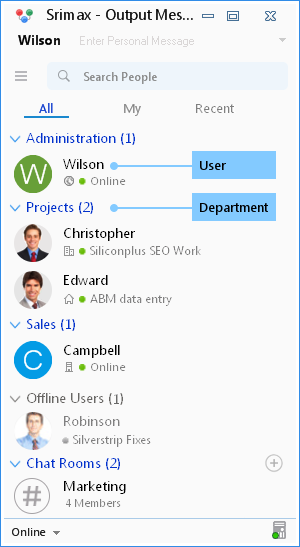
Categories
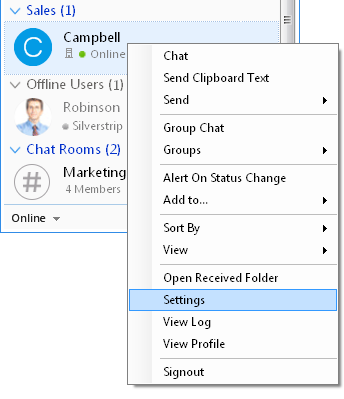
To do so, right click the User/ Departments name, choose the Settings :
 Choose the Display Details > Hide Users/Departments. There are two categories to hide the user listing page:
- Hide Users.
- Hide Departments.
Hide Users
To hide Users from Users list,
- Under Hide Users, click the Search by name field.
- Type the name of the user you want to hide and select the user from the search results.
- The selected user will be added to the hidden users list.
- Repeat the above steps to add more users if required.
- After selecting Users, Click Save.

Hide Departments
To hide Departments from Users list,
- Under Hide Departments, click the Search by Departments field.
- Type the name of the department you want to hide and select the Department from the search results.
- The selected departments will be added to the hidden departments list.
- Repeat the above steps to add more departments if required.
- After selecting Departments, Click Save.
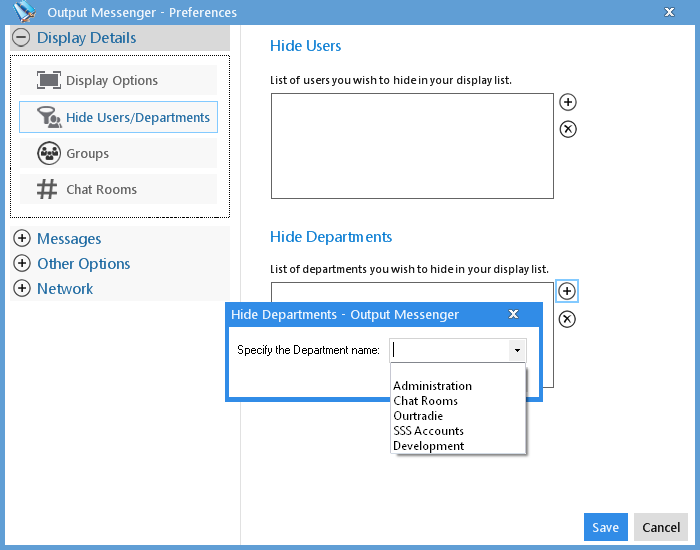
Delete/Unhide the Users and Departments
Under the Hide Users/Departments tab, click the remove button on the left side of the user name and click Save.
RELATED TOPICS
Announcement
Mails
Reminders
Notes


