Connect an AI Assistant to Output Messenger and chat with it right inside your message window. You can connect any OpenAI-compatible provider — cloud or local.
Enable AI Assistant
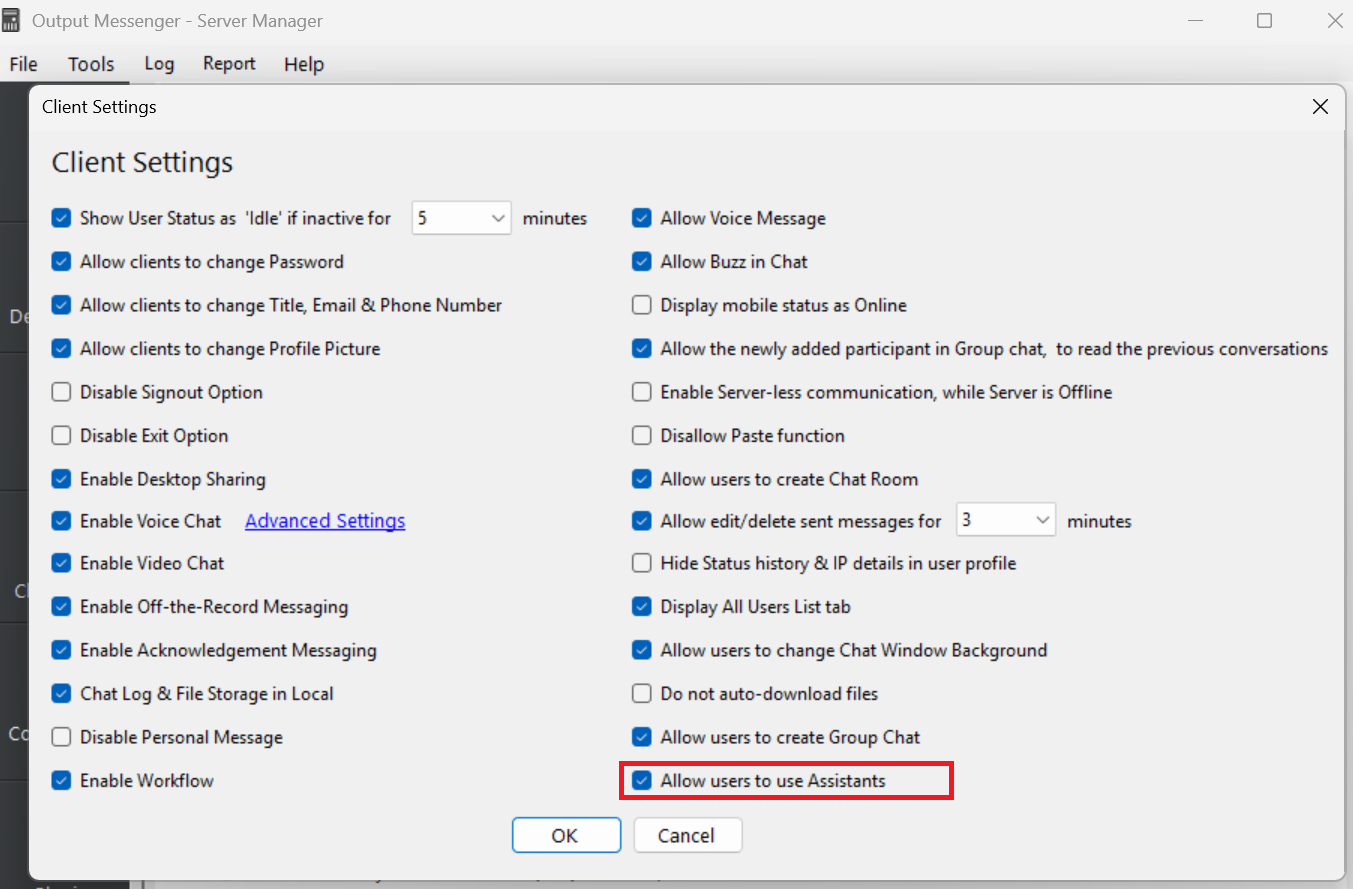
Before users can add or use Assistants in the Output Messenger client, the administrator must enable the “Allow users to use Assistants” option in Server Manager → Client Settings.
Add & configure an Assistant
- In the User List, find the Assistants group near the bottom.
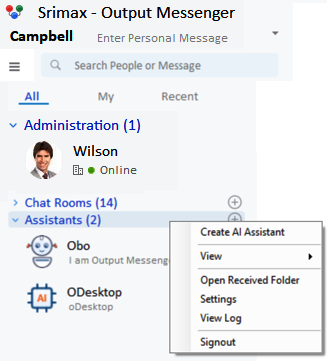

- Click the + button next to the Assistants heading to open Assistant Settings.
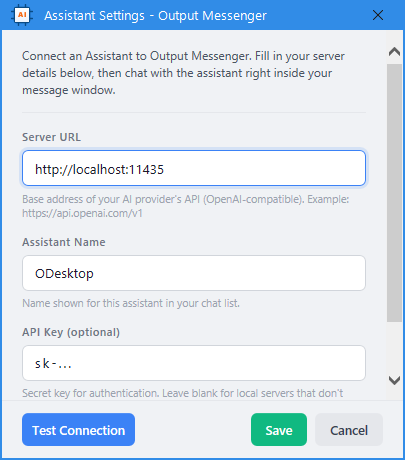
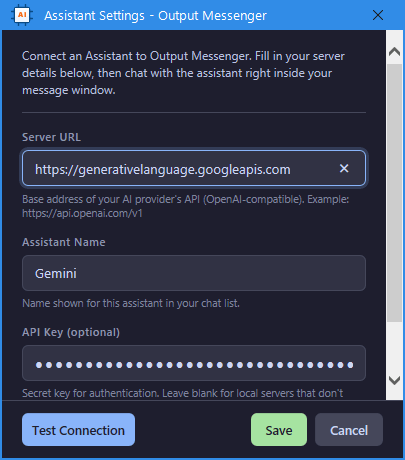
- Enter the connection details:
- Server URL (required) — the base address of your AI provider’s API (OpenAI-compatible), e.g.
https://api.openai.com/v1. For a local model, use its
local address. - Assistant Name — the name shown for this assistant in your chat list, e.g.
ODesktop. - API Key (optional) — the secret key for authentication (
sk-…). Leave blank for local servers that don’t require one.
- Server URL (required) — the base address of your AI provider’s API (OpenAI-compatible), e.g.
- Test and save. Click Test Connection to confirm the details are correct, then click Save. The assistant now appears under Assistants
in your User List. - Start chatting. Select the assistant and type your request like a normal chat —
for example, “Write a professional follow-up email to a client.”
Supported AI Assistants
Output Messenger’s Assistant works with any provider that exposes an OpenAI-compatible API — including OpenAI, Google Gemini, Anthropic Claude, Groq, Azure OpenAI, Mistral AI, Microsoft Copilot, Ollama, and more. Just enter the provider’s Server URL, API Key, and Model. Common endpoints:
| Assistant | Server URL |
|---|---|
| OpenAI | https://api.openai.com/v1 |
| Anthropic (Claude) | https://api.anthropic.com/v1 |
| Google Gemini | https://generativelanguage.googleapis.com/v1beta/openai |
| Groq | https://api.groq.com/openai/v1 |
| Azure OpenAI | https://<your-resource>.openai.azure.com |
| Ollama local | http://localhost:11434/v1 |
| OpenClaw local | http://localhost:18789 |
This is not a fixed list — any OpenAI-compatible endpoint works (LM Studio, vLLM, OpenRouter, Together, DeepSeek, and others). Output Messenger auto-detects the provider from the URL and shows its logo where available.
Example: the ODesktop Assistant
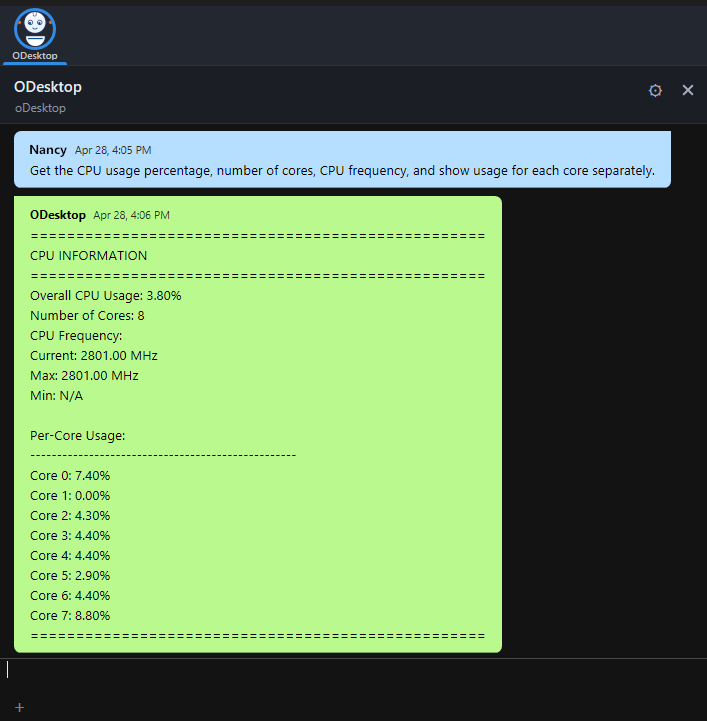
ODesktop is a personal AI desktop agent integrated with Output Messenger. It understands natural language and performs real tasks on your computer — just describe what you need and ODesktop takes care of it. Work smarter by automating everyday tasks with your own AI assistant.
What it can do
- File operations — search, move, copy, and rename files.
- System monitoring — check CPU, memory, disk, and running processes.
- Document creation — generate reports, letters, and notes.
- Web scraping — extract and save data from web pages.
- Image manipulation — resize images and extract text (OCR).
- …and more.
Example requests
- Find all
.pdffiles in my Documents folder and move them to a “Reports” folder. - Check the current CPU, memory, and disk usage of this computer.
- Write a professional email to a client confirming their installation is complete.
- Extract all text from the image
C:\Users\Asus\Desktop\logo.png. - Resize this image to 300 × 300 pixels.


