OBO is an intelligent assistant built into Output Messenger. It streamlines everyday administrative tasks — reminders, tasks, leave, calendar, and log lookups — and, when an AI model is connected, understands natural-language commands and searches your Chat Logs and Drive files.
What is OBO?
OBO is an intelligent assistant integrated within the Output Messenger ecosystem. Designed specifically for Output Messenger users, OBO helps streamline everyday administrative tasks — improving productivity and efficiency across your day.
OBO with LLM
When an AI language model (LLM) is connected to your Output Messenger server, OBO gains smarter, context-aware abilities — improving your chat replies and letting you search your Chat Logs and Drive files using natural language.
1. Enabling LLM for OBO
LLM features (smart replies, summaries, ask-your-data, etc.) are configured by your administrator in the Server Manager. Once enabled, every OBO chat window shows the active provider (for example, OllamaAPI (phi4-mini)) under the bot name.
http://localhost:11434/api/generate does not work by default. That address belongs to strong>Ollama, a free local AI engine that must be installed and running first. You must set up one of the two options below before Test Connection will succeed.Option A — Run a local model with Ollama Free · Private · On your server
The model runs on your own server; no data leaves your network and there is no per-use cost. Best when you have a capable server (plenty of RAM, ideally a GPU).
- On the server, download and install Ollama from https://ollama.com/download.
- Open a command prompt and download a model, for example:
ollama pull phi4-mini - Confirm Ollama is running by opening
http://localhost:11434/api/tagsin a browser — you should see JSON text, not an error page. - In Server Manager → Plugins → LLM Configuration, tick Enable LLM and choose Provider Ollama API (Custom Server).
- Set URL
http://localhost:11434/api/generateand Modelphi4-mini, then click Test Connection and Save.
Option B — Use a cloud provider OpenAI · Gemini · others
No installation needed. Requires an account with the provider and an API key (usually billed per usage).
- Create an account with your chosen provider (e.g. OpenAI or Google Gemini) and generate an API key.
- In Server Manager → Plugins → LLM Configuration, tick Enable LLM and choose that provider as the
LLM Type / Provider. - Paste the API key and select a Model.
- Click Test Connection — you should see “Connection successful!” — then click Save.
http://localhost:11434/api/tags shows “This page can’t be displayed”, it means nothing is running at that address — Ollama is not installed or not started on that machine (Option A), or you have not entered a valid provider and API key (Option B). Complete one of the two options above and try again.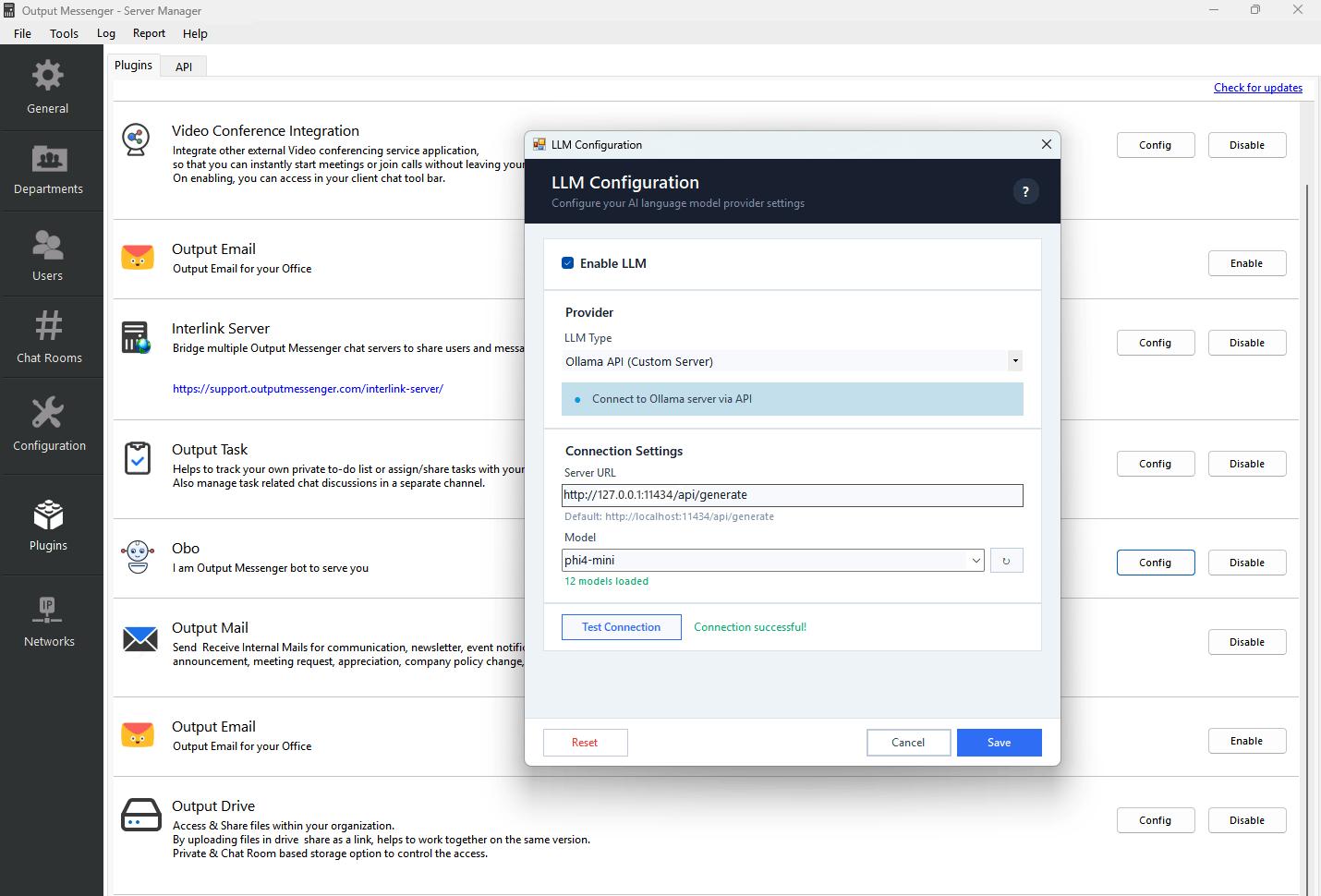
2. What you can do when LLM is enabled
Improve reply in chat window
While chatting, OBO’s AI can refine and rephrase your draft message — making it clearer, more professional, or better worded — right inside the chat window before you send it.
Chat Log & Drive search
Ask OBO questions in plain language and it searches your Chat Logs and Drive files, then answers with the relevant content and cites the source file(s).
3. Search modes — Default & Drive
Each OBO chat window has a mode selector in the top-right corner. The selected mode decides where OBO looks when you send a request.
Default
Searches and acts across all your modules:
Use natural-language commands to create, assign, schedule, apply for, and view items across these modules.
Drive
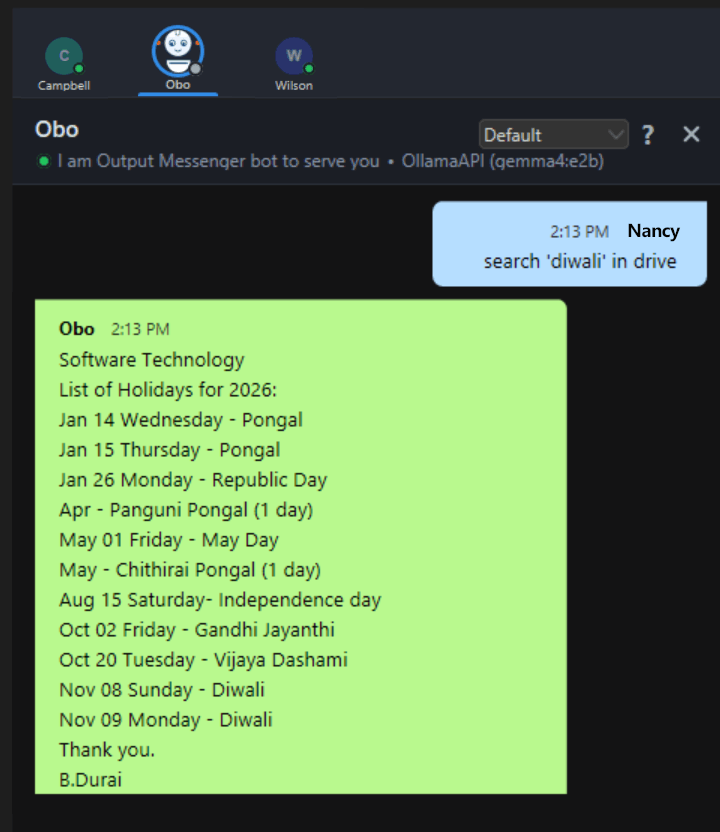
Searches your Drive files only. OBO looks through your Drive documents and returns the matching content with the source file(s) cited. You can also run a one-off Drive search from Default mode using the /drive command.
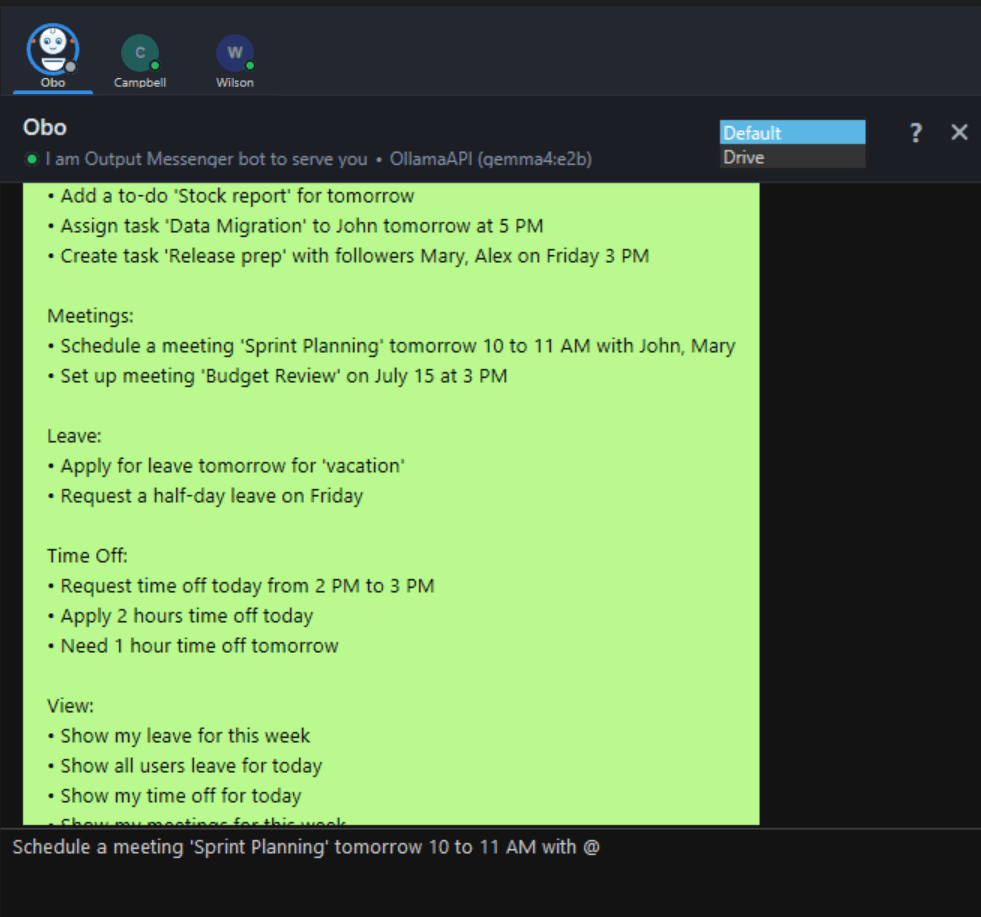
/drive command) require the OBO and Drive plugins to be enabled on the server.4. Drive Search — example
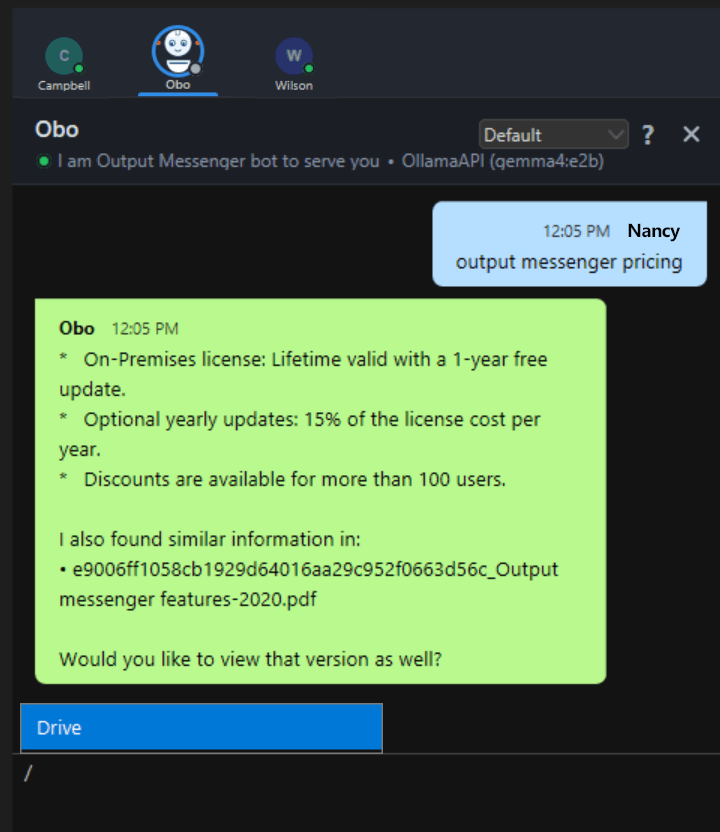
Use the /drive command in the OBO chat window, followed by what you want to find:
/drive Output Messenger pricing
OBO searches your Drive files and replies with the matching information and the source document:
OBO without LLM
OBO supports reminders, tasks, leave requests, @mentions, and other actions via the UI and structured commands — no AI (LLM) required.
1. Mention & notify users in a command
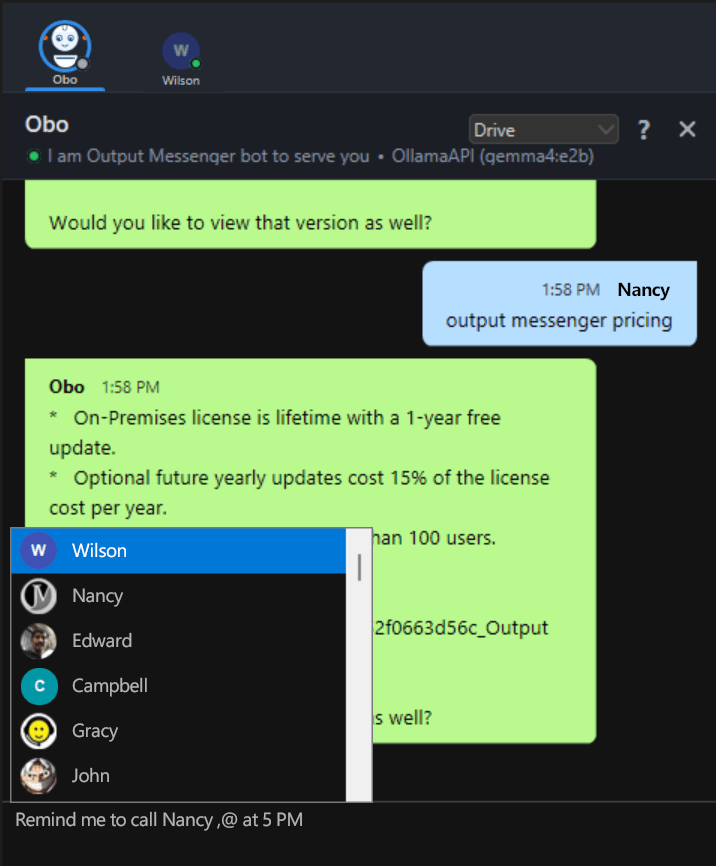
You can reference a user inside an OBO command with an @mention. Type @ and a picker appears — select the person you want to notify or include.
Schedule a meeting ‘Sprint Planning’ tomorrow 10 to 11 AM with @
After typing @, choose the user(s) from the list (for example Wilson, Nancy, Edward…). OBO then performs the action — such as scheduling the meeting — and notifies the mentioned user(s).
Core capabilities
With OBO, you can easily:
- Set up reminders
- Create and manage tasks
- Submit or cancel leave requests
- Organize and plan your calendar
- Perform log lookups
2. Reminder setup
Automates sending reminders for meetings, deadlines, or personal tasks.
- Set a reminder for today 4:30 PM to attend the client call
- Notify Michel on Apr 23 10 AM to send the weekly report
- Alert Sam on Apr 24 10 AM about the audit meeting
- Remind me in 10 minutes to check the oven
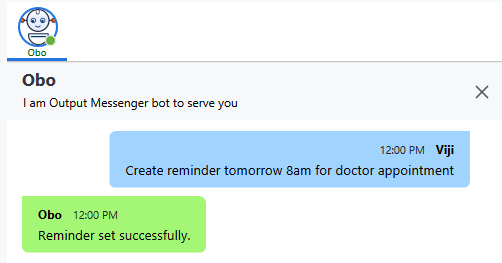
- Create reminder tomorrow 8 AM for doctor appointment
How to use
- Open Output Messenger.
- Launch the chat for OBO.
- Enter a reminder command, e.g. Remind me to submit the report tomorrow at 10 AM.
- OBO confirms with “Reminder set successfully,” and notifies you when it’s time.
3. Task creation
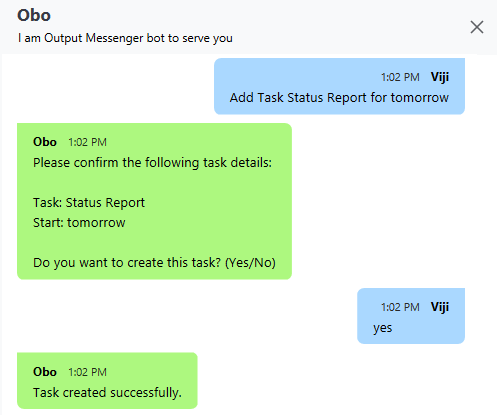
Create and manage tasks using natural-language commands. OBO extracts details such as task title, start time, end time, and recurrence, and confirms before creating the task.
- Add Task Status Report for tomorrow
- Please create a Task stock report submission 05:30 PM to 07:30 PM
- New To-do Learn Python & finish before Feb 21, 11:00 PM
- Plan a weekly meeting every Monday at 9 AM
- Create a task produce stock report tomorrow 4:30 PM
How to use
- Open Output Messenger.
- Launch the chat for OBO.
- Enter a task command, e.g. Add Task Status Report for tomorrow.
- OBO confirms with “Successfully created task.”
4. Leave requests & cancellations
Effortlessly apply for or cancel leave via chat.
- Request Alice for time off on Friday from 2 PM to 4 PM for a wedding
- Apply for leave with Manager for 2 days due to personal reasons
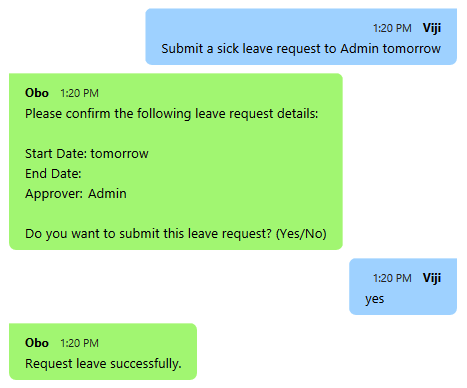
- Submit a sick leave request to HR starting next Tuesday for 2 days due to flu
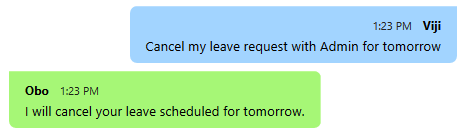
- Cancel my leave request with HR for tomorrow
- Please remove my leave scheduled with John for July 5th
How to use
- To request leave: Submit a sick leave request for tomorrow.
- To cancel leave: Cancel a sick leave request for tomorrow.
5. Calendar planning
Schedule events, check availability, or plan meetings.
- List upcoming holidays
- Will I be on leave next Monday?
- Show holidays in October
- Request time off from Prasanna sir for 1 hour today
- When is the next official day off?
How to use
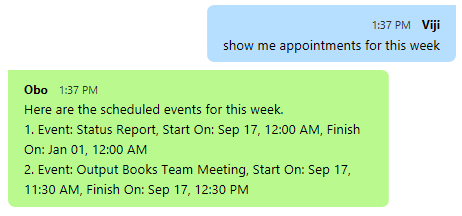
- To view your calendar: Show me appointments for this week.
6. Search chat logs
OBO helps you find past conversations easily. Describe what you’re looking for and put your search term in single quotes.
- Search logs for ‘project plan’
- Search ‘OD#12345’
- Find ‘stock market report’ from John
- Search ‘ticket booking status’ in my logs
- Search ‘job order’ for the past 2 days
- Search ‘project documentation’ with Sarah for today
Refine your search
Add any of the following to focus the results:
- from a person — messages sent by a specific user
- with a person — your conversation with a specific user
- in my logs — limit the search to your own chat history
- a time range — for example, today, the past 2 days, or a specific date
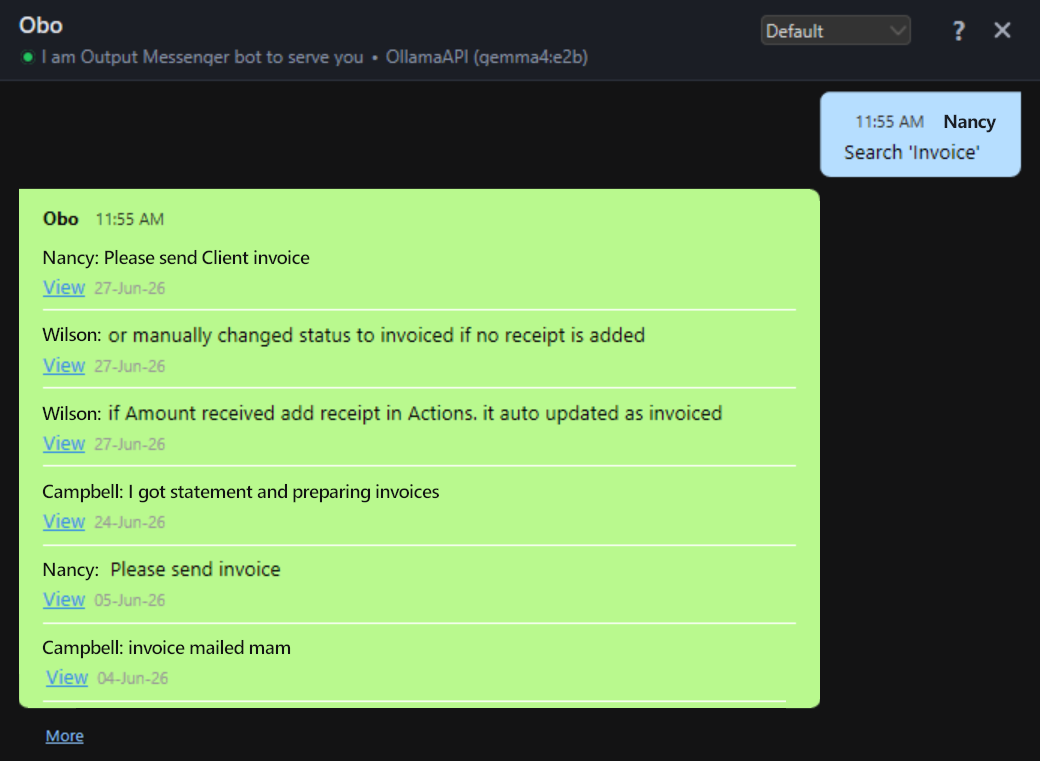
Obo intelligently presents the most relevant Drive file content and suggests related matching documents/files for easy access to the required version.
Best practices & FAQs
Best practices
- Phrase commands naturally — OBO excels at parsing straightforward language.
- Be specific — include exact dates, times, and names.
- Remember an approver is required when submitting a leave request.
FAQs
Q: Can I assign tasks to others?
A: Yes — use commands like “assign task to [Name]…”.
Q: Does OBO require specific settings?
A: Yes — make sure OBO is activated in the Plugins section of the Output Messenger Server and is visible (online) in the chat window.
Q: Will reminders follow my time zone?
A: OBO follows your configured regional settings in Output Messenger.


